 Retro DOS Games Emulator
Your DOS games, ready to play.
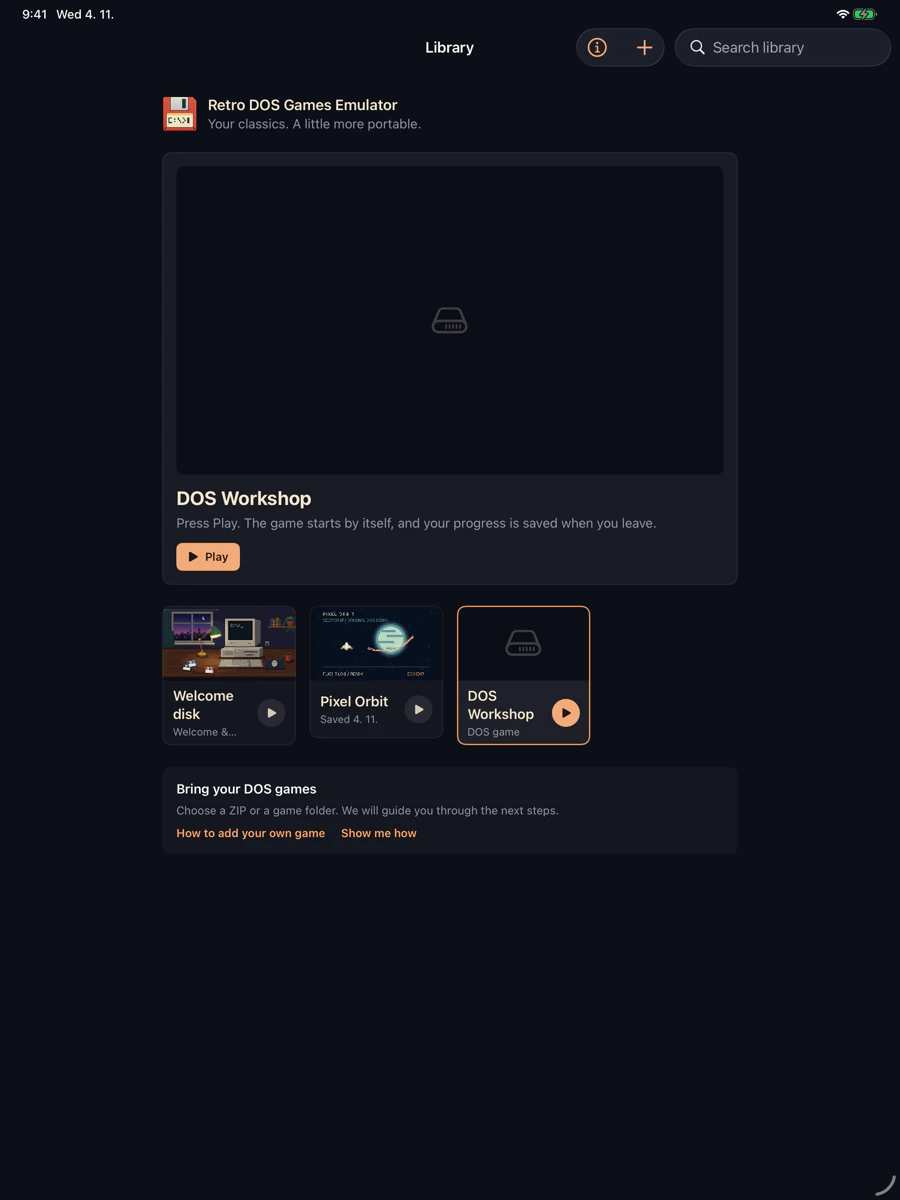
A personal library for DOS games on iPhone and iPad. Start with the included Zork I and Rogue, import your own games and continue later from a saved session.
iPhone · iPad · iOS 17+ / iPadOS 17+ · Mac version in App Review
One purchase covers iPhone, iPad and Mac. No account, ads or tracking.
From a game folder to playing
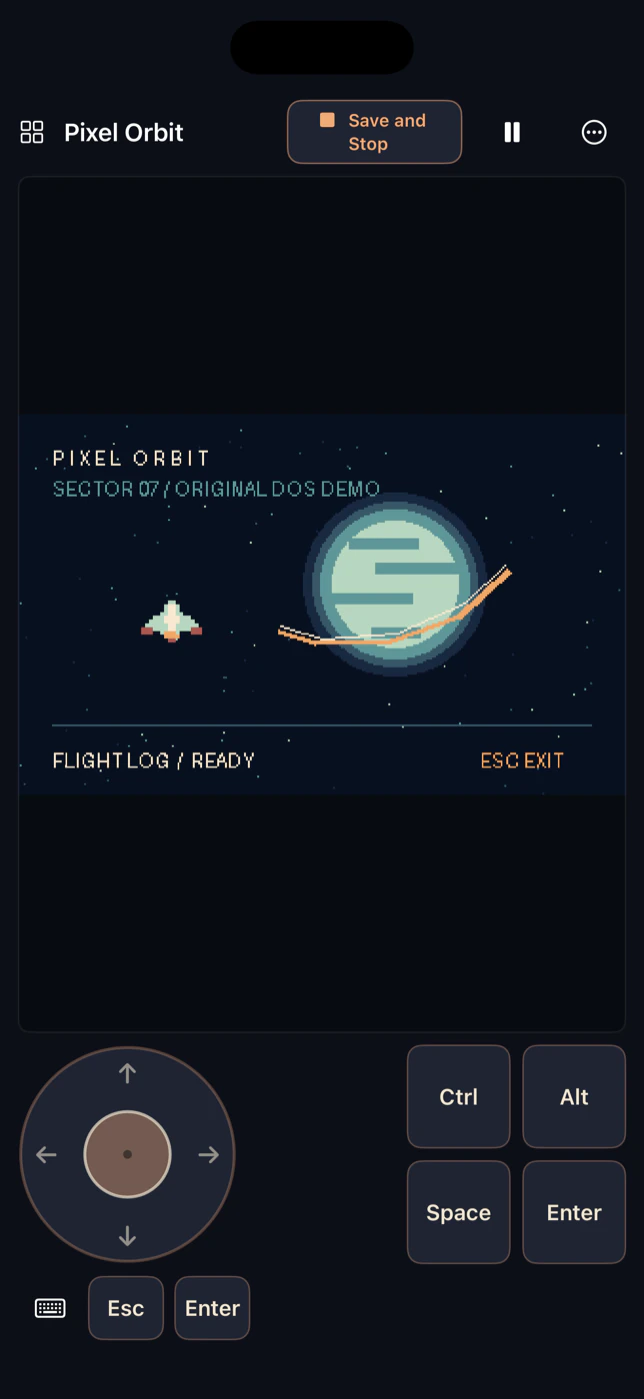
The app brings an emulated PC with MS-DOS 4.00, a library of your games and saved sessions together. Everything runs on the device.
Play right away
Zork I and Rogue are already in your library. Select a game and press Play: the PC boots and the game starts by itself.
Add your own games
Import a DOS game folder, a ZIP archive or an IMG / IMA disk image. The app prepares a disk with MS-DOS and helps you pick the program that starts the game.
Continue later
Save the whole session, not just the game’s own save slots. Pause, stop or switch to another game, then pick up exactly where you left off.
Controls made for touch
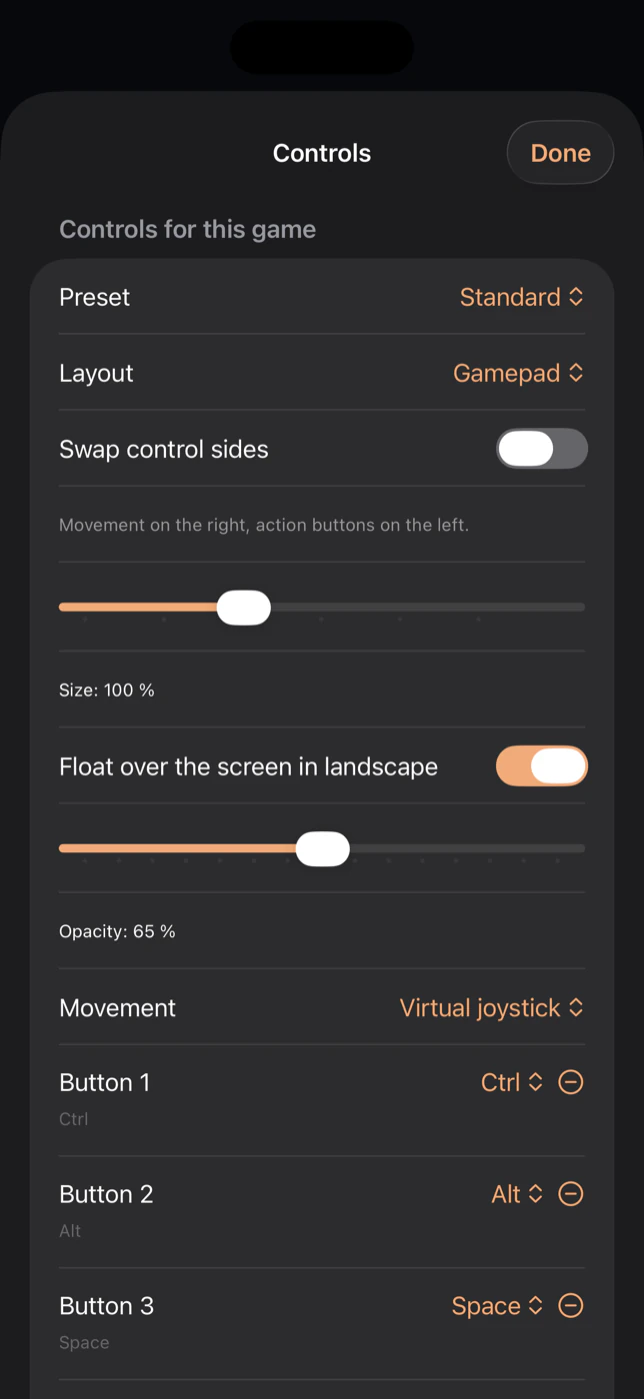
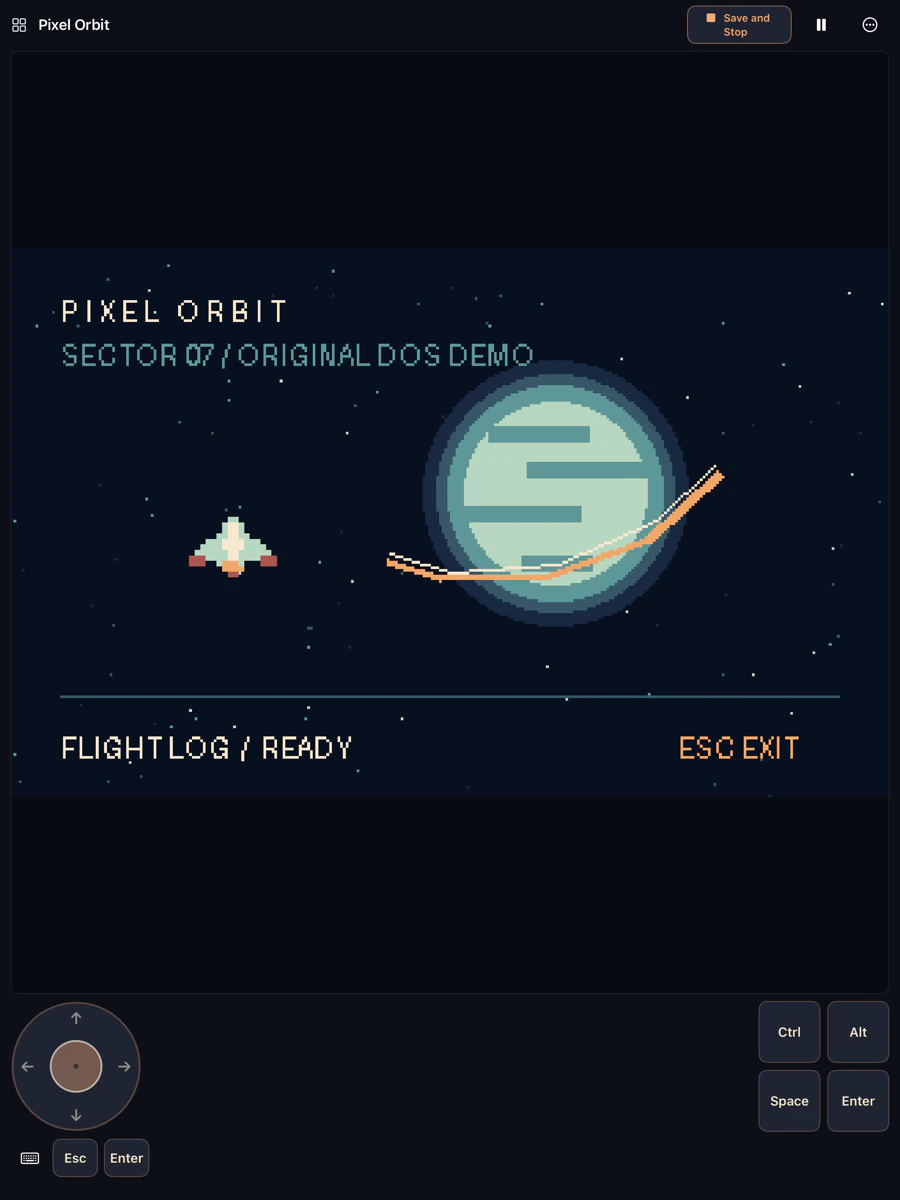
A virtual joystick or directional pad, configurable action buttons, a trackpad with left and right mouse buttons, and a DOS keyboard with function keys. Each game keeps its own layout.
Game controllers
Connect an MFi, Xbox or PlayStation controller and play with keys, mouse look or an emulated joystick. The on-screen controls step aside while it is connected.
Sound of the era
Sound Blaster, AdLib FM music and General MIDI, so games sound the way they were meant to.
Saves, disks, CDs and display options
Name your own save slots or let the app keep automatic saves when you stop or switch games; an optional timer saves every few minutes. Floppy and hard-disk images up to 512 MB can be imported, an ISO or CUE/BIN CD image can be attached to a game as drive D:, and floppies can be swapped while a game runs.
The picture can keep the original 4:3 shape, use square pixels or fill the screen, scale in whole steps for crisp pixels, or add CRT scanlines. CPU speed presets slow down games that run too fast, and VoiceOver can read the DOS text screen aloud.
On iPhone and iPad
Real screens from the app, showing an original DOS demo. Select an image to enlarge it.
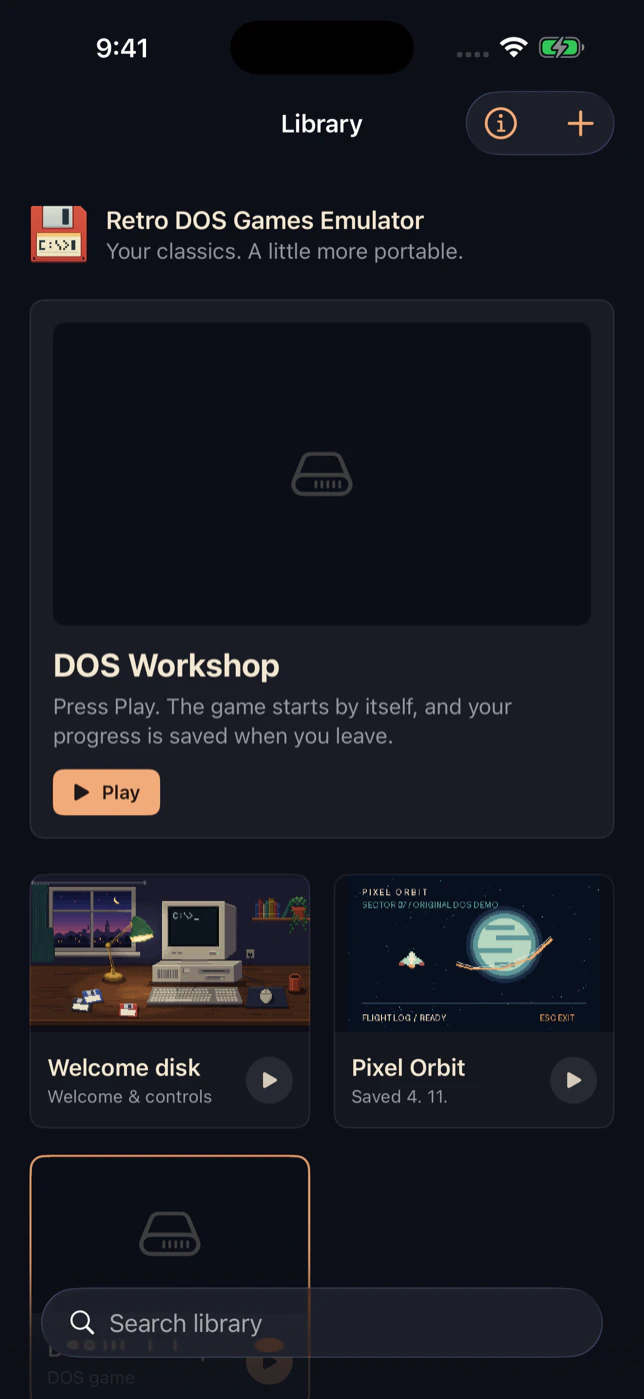
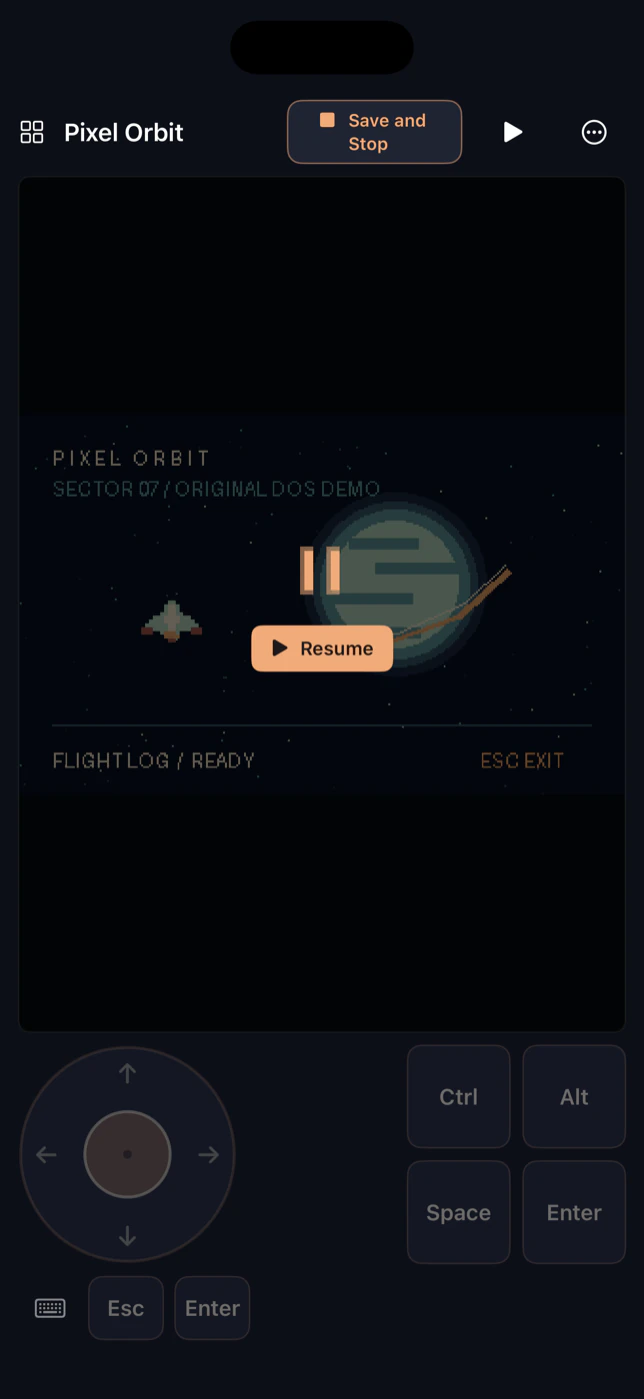
More screenshots: iPad
Included games
Two classics are part of every new library, with their licenses. Commercial games are not included.
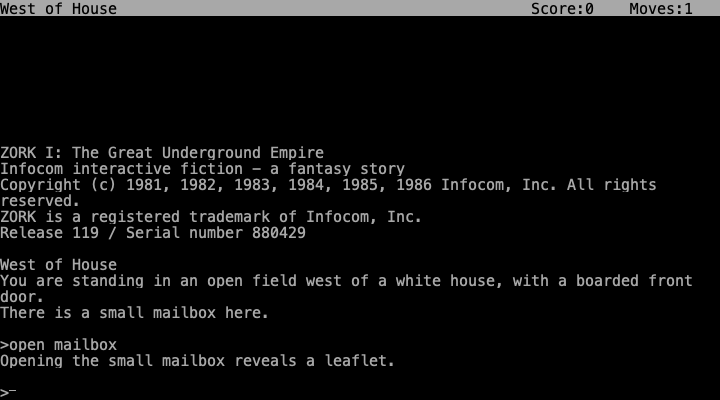
Zork I · Text adventure
Explore the Great Underground Empire by typing commands. The MIT-licensed story runs on a DOS interpreter built for the app.
Controls: Type commands such as LOOK, NORTH and INVENTORY, then press Enter.
License: MIT (story) · zlib (MojoZork interpreter). License text · Original project
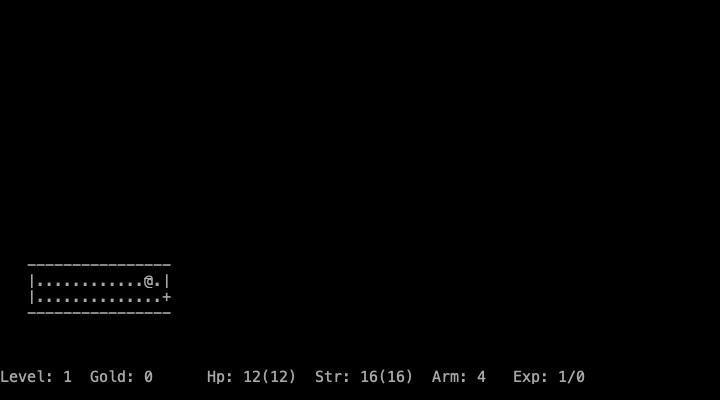
Rogue · Dungeon adventure
A new dungeon every time. Collect supplies and search for the Amulet of Yendor. Rogue 5.4.4 with a DOS port.
Controls: Use the arrow keys to move. Press ? for the in-game help.
License: BSD. License text · Original project
Coming to the Mac
The native Mac edition is in App Review. When it is released, the same purchase covers it, with no second payment.
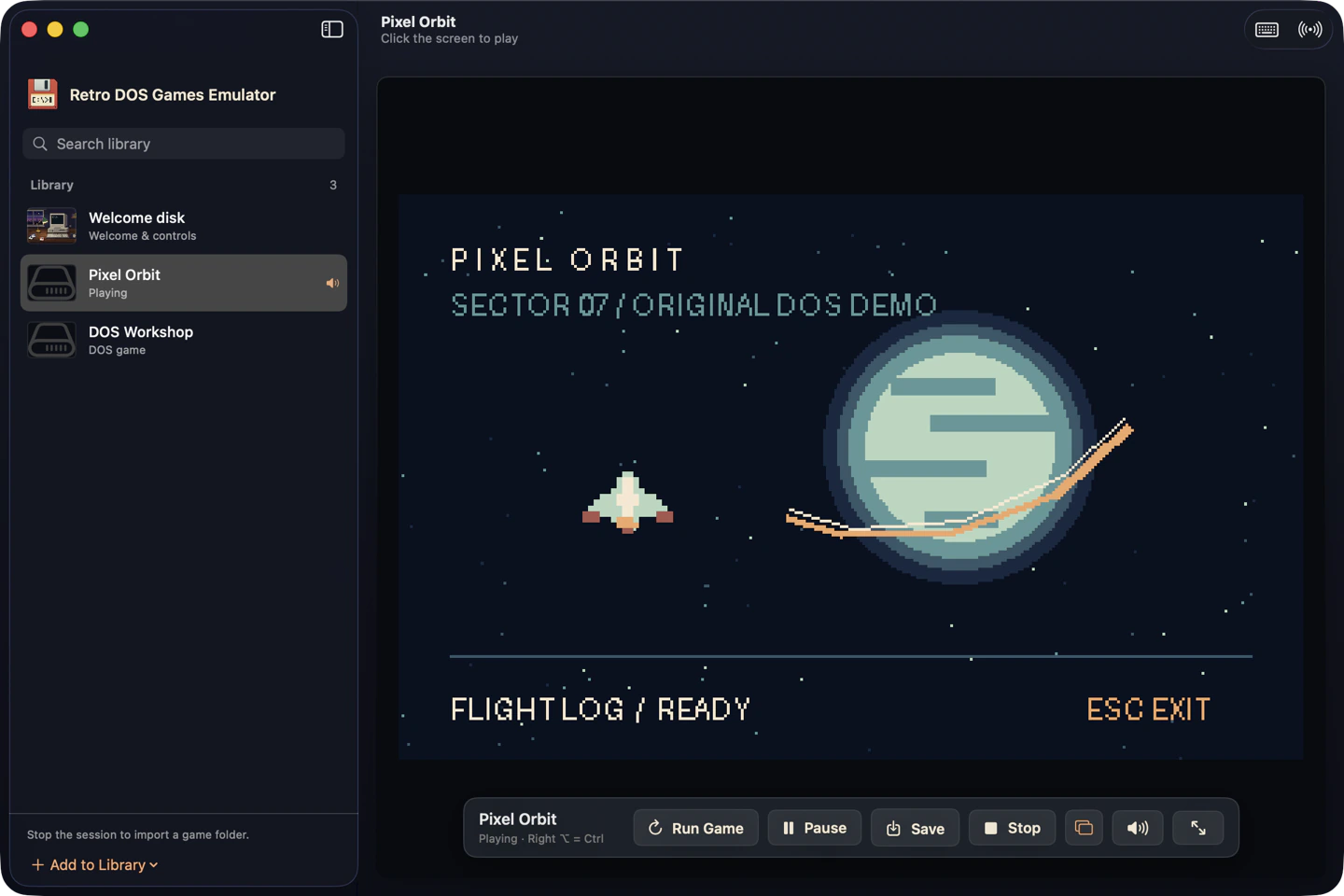
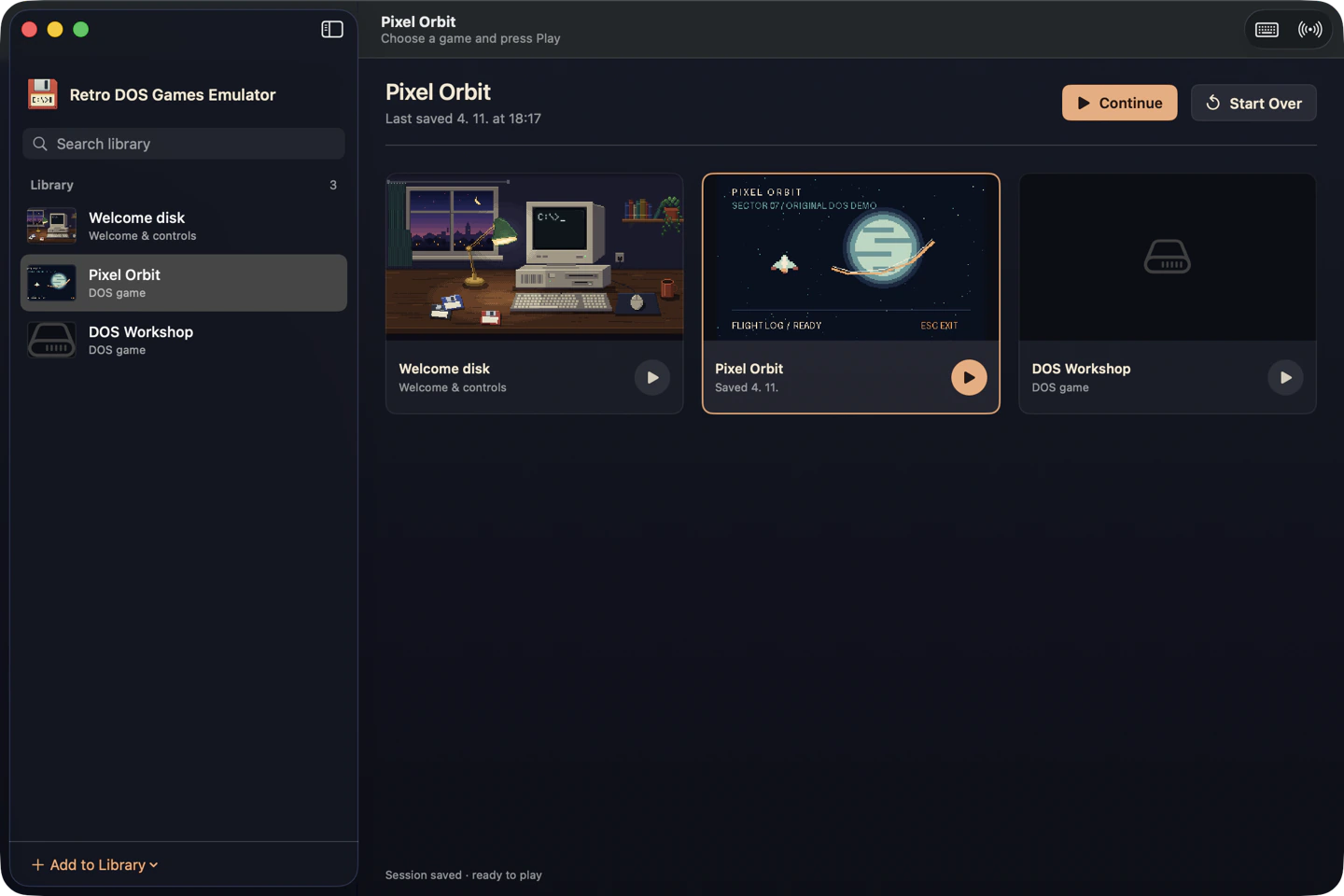
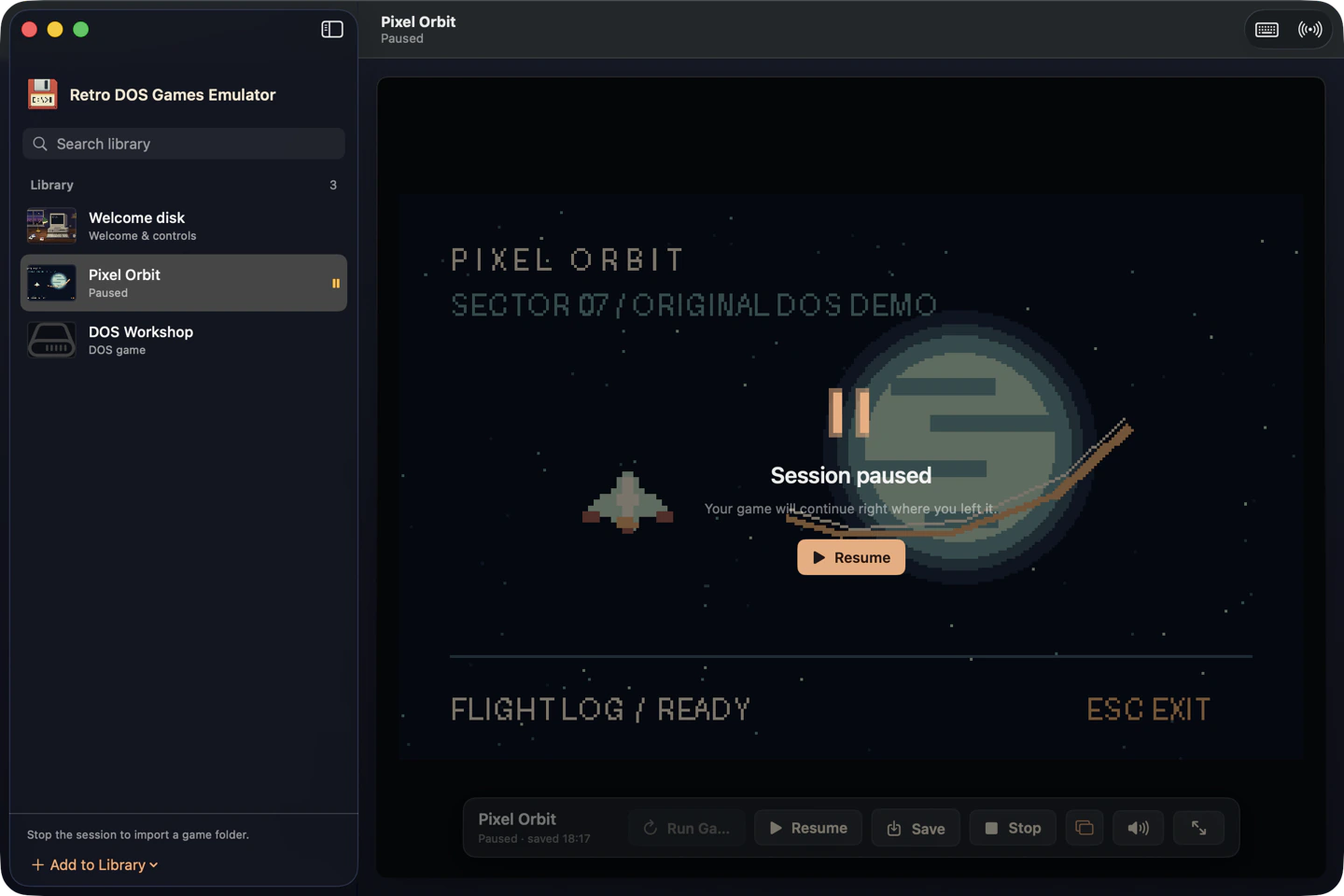
Play with your keyboard and mouse: click the screen to capture them and press Control + Command to release. Drag a game folder, ZIP or disk image onto the window to import it. Streamer Mode opens a clean game window for OBS. macOS 14 or later.
Good to know
Which games can I play?
Zork I and Rogue are included. You can import DOS games you have permission to use, such as your own copies or freely distributable releases. Compatibility and performance vary by game and device.
How do I add my own game?
- Keep the game’s complete folder, including its data files, or a ZIP of it.
- On iPhone and iPad choose + in the library and pick the folder or ZIP in Files.
- If asked, choose the game’s EXE, COM or BAT launcher: the main game, not its setup program.
- Press Play and adjust the controls if needed.
The full guide is on the support page.
Why will a game not import?
Game folders need DOS 8.3 file names (up to eight characters plus a three-letter extension). Windows and macOS installers are not DOS games: install or extract the DOS game files first. Disk images import through their own option.
What exactly does a saved session keep?
The whole emulated PC: memory, disk contents and sound state. Continue resumes the moment you saved, and Start Over boots the game again from its disk.
Do I need an account or an internet connection?
No. Games, settings and saved sessions stay on your device. The app has no account, advertising or analytics. Privacy policy →
Which devices and languages are supported?
iPhone with iOS 17 or later and iPad with iPadOS 17 or later; the Mac version needs macOS 14 or later. The app is available in English, Czech, German, Spanish, French, Italian and Polish.
Get Retro DOS Games Emulator
